Back up what matters, transfer wallets and authenticators, remove SIMs and account locks, and only then perform the correct factory reset.
Key Takeaways
- Verify your backup and essential account access before resetting the old phone.
- Transfer authenticators and check wallet items individually; not every card, pass or credential restores automatically.
- Remove physical SIM and memory cards, and follow official instructions for transferring or deleting an eSIM.
- Sign out and clear account or security locks using the current instructions for your exact device.
- Perform the factory reset only after every transfer and removal step is complete.
A factory reset should be the final step when preparing a phone for sale, trade-in, donation or recycling—not the first. Before you erase a phone before selling it, confirm that your data and essential digital credentials have moved safely, disconnect accounts and services, and remove anything the reset may not recover or return.
Before you erase: plan the handover
Reset instructions vary by operating system, manufacturer, software version and device-management policy. Follow the current instructions from Apple, Google or your phone’s manufacturer rather than relying on an old menu path.
Also check the recipient’s or trade-in provider’s requirements. Samsung, for example, warns that devices submitted with personal data or software locks may be rejected, and that SIM cards, memory cards or accessories sent with a trade-in might not be returned. Program rules vary by company and country.
1. Verify your backup and transfer
Back up or transfer everything you intend to keep before starting the reset. This can include photos, messages, contacts and other supported phone data. Do not treat the presence of a backup setting as proof that the transfer is complete: inspect the new phone or backup destination and confirm that the important material is accessible.
Google advises Android users to verify their backup and make sure they know both their Google Account credentials and screen-lock credentials before resetting. Information already stored in a Google Account may be restored later, but local data on the phone is removed by the factory reset.
Apple likewise directs iPhone and iPad owners to transfer or back up their information before erasing the device.
Account access that may need separate attention
- Authenticator apps: Reactivate or transfer authentication access before wiping the old phone. The US Federal Trade Commission specifically advises handling authenticator apps when preparing a phone for disposal or transfer.
- Phone-number changes: If you will not keep the same number, update accounts that use it before losing access to the old line.
- Credentials: Confirm that you know the account passwords and device passcode needed during migration and reset.
2. Check wallets, passes and digital credentials
A digital wallet can contain more than payment cards. Depending on the phone, country and provider, it may also hold loyalty cards, gift cards, event tickets, boarding passes, transit value, IDs, access credentials or digital keys.
On an iPhone, Apple says the erase process removes Apple Pay cards. You should still verify that the cards and other credentials you need are available on the replacement device before erasing the old one.
Google says some Google Wallet cards and passes can move through device-to-device migration or cloud restoration, while others must be removed from the old phone and added manually to the new one. Loyalty cards, gift cards, tickets and boarding passes associated with a Google Account may reappear after sign-in, but recovery is not guaranteed for every item.
A factory reset deletes local Google Wallet data. Confirm the status of stored-value transit cards, IDs, access credentials and digital keys before proceeding. Transfer support depends on the issuer, transit operator, wallet provider, country and type of credential.
On Android 15 and later, a phone may display a reminder to back up supported stored-value transit cards. That reminder does not establish that every wallet item is transferable.
3. Deal with SIMs, eSIMs and memory cards
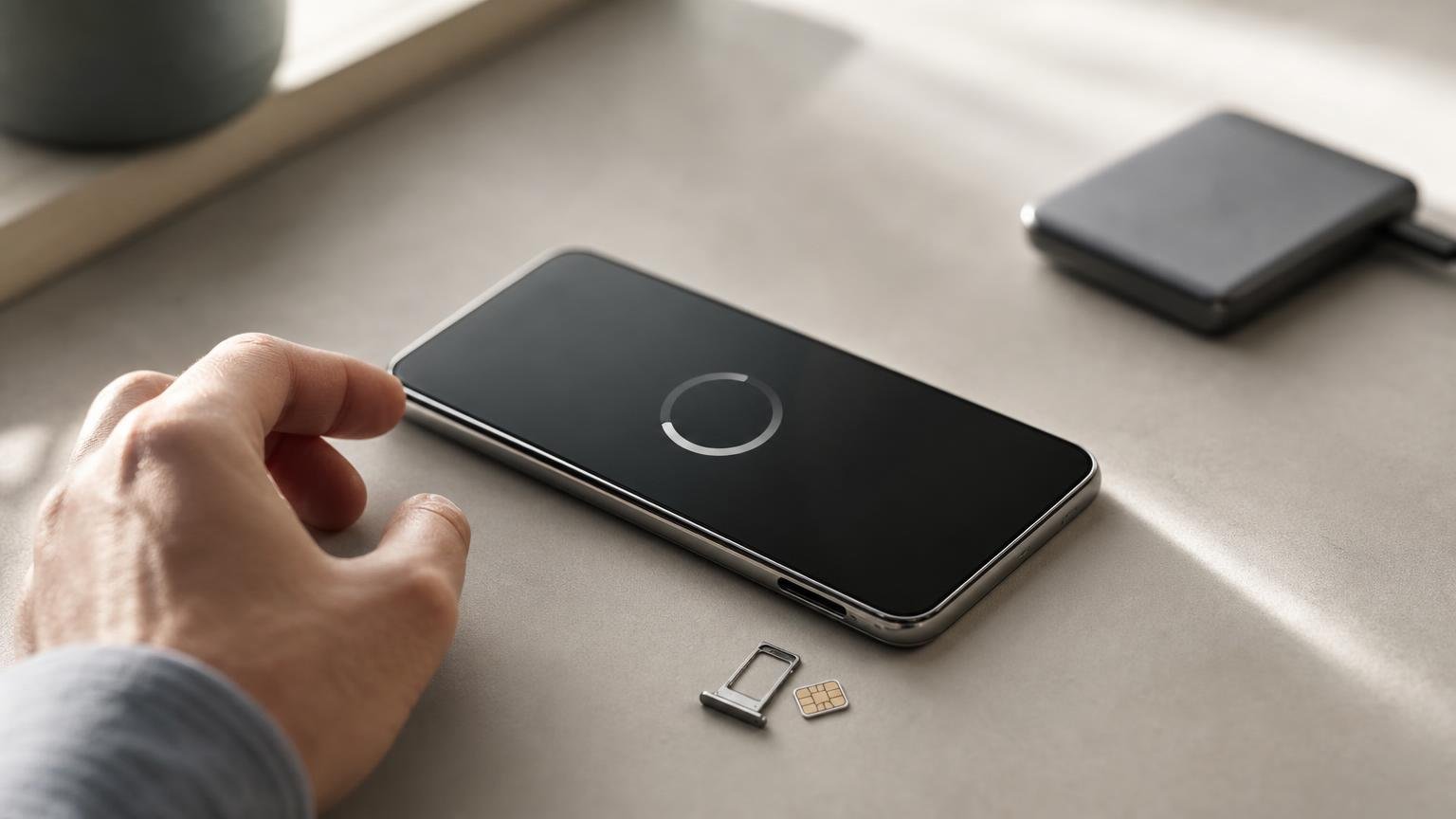
- Physical SIM: Remove it unless the carrier or transfer program explicitly instructs otherwise.
- Memory card: Remove any SD or other removable storage card. Do not assume a phone reset covers media that can be physically removed.
- eSIM: Check the carrier and manufacturer’s current transfer instructions before erasing the old profile.
For an iPhone using an eSIM, Apple tells sellers to choose the erase option that removes both the device’s content and the eSIM profile. Exact labels may vary by iOS version and region.
Because eSIM handling differs among devices and carriers, make sure the service is working on the replacement phone before deleting the old profile. If the phone is being sold without an active line, consult the current official instructions for that model and carrier.
4. Sign out and clear account locks
Account locks are designed to stop an unauthorized person from reusing a device. They can also prevent a legitimate buyer or trade-in processor from accepting it if the previous owner has not completed the required sign-out and reset steps.
Apple’s checklist includes signing out, erasing all content and settings, and removing the old device from the owner’s trusted devices. Apple states that its erase process turns off Apple services and disables Find My and Activation Lock. If you are moving from an iPhone to a non-Apple phone, Apple also advises deregistering iMessage.
On Android, the correct account-removal and reset process can vary by manufacturer, Android version, management policy and reset method. Google recommends using the manufacturer’s instructions. Samsung’s trade-in guidance tells users to log out of applicable Samsung, Google and iCloud accounts and remove software and security locks before submitting a device.
Do not guess at an account-lock procedure from another model. Use the current official directions for the phone you are handing over.
5. Perform the factory reset
Only reset the phone after you have verified the backup, transferred wallet items and authenticators, handled the mobile service, removed physical cards, and completed the required account steps.
For iPhone
Follow Apple’s current process to erase all content and settings. Apple says this removes personal content and Apple Pay cards, turns off its services, and disables Find My and Activation Lock. If the phone uses an eSIM, choose the option that also erases the eSIM profile when the device is leaving your possession.
If you need to change an Apple Account password while Stolen Device Protection is enabled, Apple notes that a security delay of up to one hour may apply.
For Android
Google says a factory reset removes data from the phone, while information already stored in the user’s Google Account may later be restored. Since menu paths differ, follow the phone manufacturer’s reset instructions.
Google recommends charging the device to at least 70% and allowing up to one hour for the reset. It also advises waiting 24 hours after changing a Google Account password before performing the reset. Some of Google’s published instructions apply only to Android 14 and later, so check the guidance for your device and software version.
Final handover checklist
- Backup checked: Important data is accessible from the new device or backup destination.
- Accounts accessible: You know the credentials needed after the old phone is erased.
- Authentication transferred: Authenticator access and any changing phone number have been addressed.
- Wallet reviewed: Payment cards, transit value, IDs, tickets, access credentials and digital keys have been checked individually.
- Service moved: The replacement phone’s mobile service is working before the old eSIM is deleted.
- Removable items taken out: Physical SIM and memory cards are no longer in the phone.
- Locks cleared: Required accounts, device-management controls and security locks have been handled using the manufacturer’s instructions.
- Reset completed: The correct factory-reset process has been used for the specific model and software version.
What This Means
The safest sequence is simple: preserve access first, disconnect the phone second, and erase it last. Backups do not necessarily restore every wallet item, and a reset does not replace the need to remove physical cards or properly clear account locks. Because menus, eSIM procedures and wallet support can change, consult the linked official instructions immediately before handing over the device.
Sources
- Apple Support — What to do before you sell, give away or trade in your iPhone or iPad
- Google Android Help — Reset your Android device to factory settings
- Google Wallet Help — Transfer a pass or card on Google Wallet
- Samsung — Device Trade-In Frequently Asked Questions
- US Federal Trade Commission — How To Remove Your Personal Information Before You Get Rid of Your Phone
