Back up what matters, preserve access to your accounts, remove physical cards and use the phone’s built-in erase function before handing it over.
Key Takeaways
- Verify that backups and app-specific transfers are complete before erasing the phone.
- Preserve authenticator access, account credentials and your phone number before changing devices.
- Remove physical SIM and storage cards, and follow official instructions for transferring or deleting an eSIM.
- Use Erase All Content and Settings on iPhone or the full Factory data reset option on Android.
- Disable activation protections so the next owner can set up the phone.
Erasing a phone safely involves more than tapping “factory reset.” Before selling, trading in, donating or recycling an iPhone or Android device, you need to preserve your data, transfer essential account access, remove physical cards and make sure activation protections will not block the next owner.
For an ordinary personal smartphone, the UK National Cyber Security Centre says the built-in restore, factory-reset or erase function is sufficient in nearly all cases. It prevents almost everyone from recovering the data, although no standard method can guarantee zero recovery in every circumstance.
Quick checklist before you erase a phone
- Back up and verify your data: Check that important photos, messages, contacts, files and app information have transferred or completed backing up.
- Preserve account access: Confirm that you know your account credentials, screen-lock code and two-factor authentication arrangements.
- Transfer services and connected devices: Move your phone number and eSIM as needed, and unpair devices such as an Apple Watch.
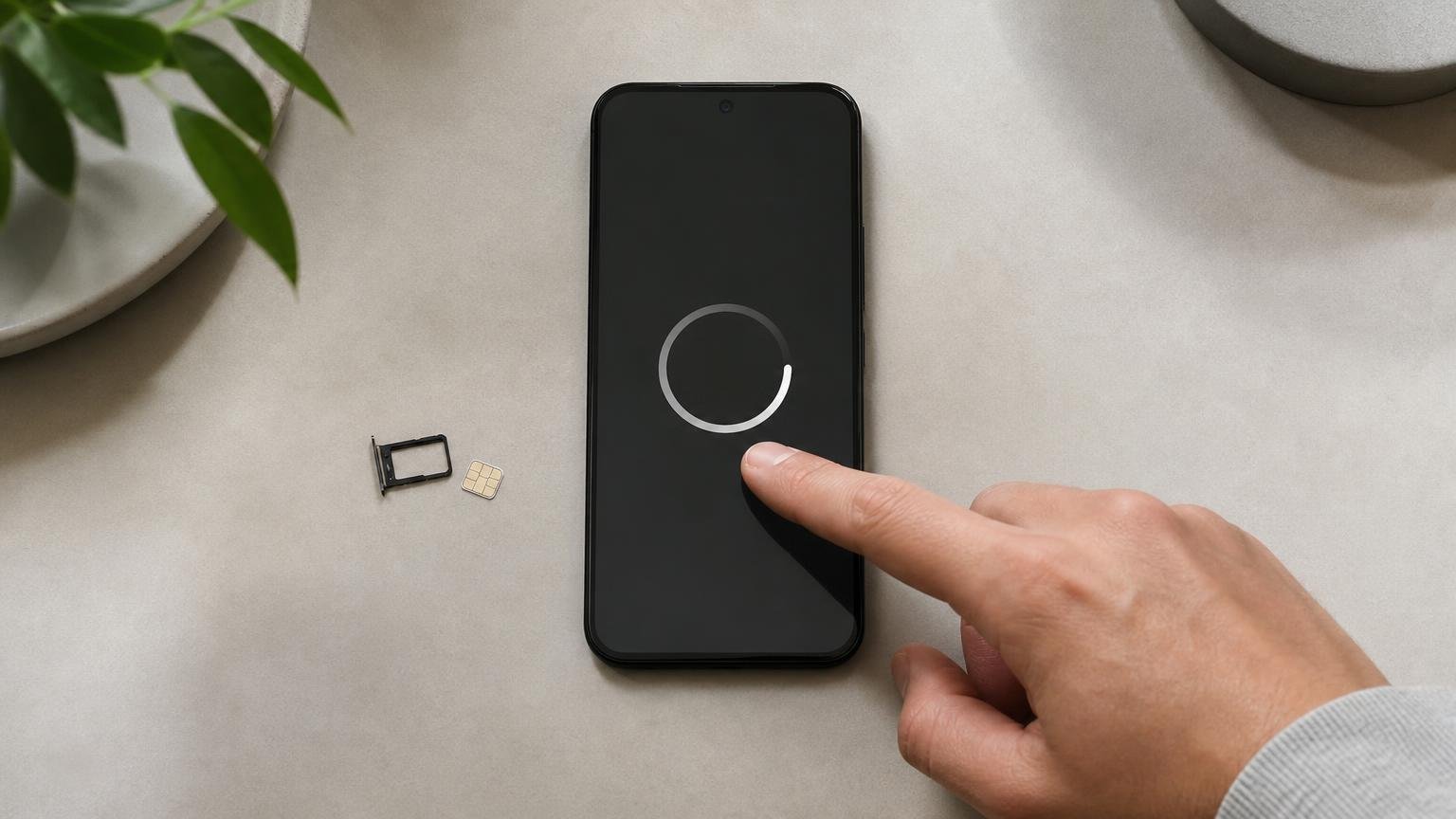
- Remove physical cards: Take out the physical SIM and removable SD or microSD card.
- Disable activation barriers: Follow the platform or manufacturer procedure for removing Activation Lock or Android Factory Reset Protection.
- Use the full erase option: Choose Erase All Content and Settings on an iPhone or Factory data reset on Android—not an option that merely resets settings.
1. Back up—and confirm the backup finished
Do not treat the presence of a backup setting as proof that all of your information is safe. Review its status and separately check any data that matters to you before wiping the phone.
On iPhone
Apple advises backing up the iPhone and transferring its information to the replacement device before erasing it. Avoid manually deleting contacts, photos, documents or other information that is synchronized with iCloud. Manual deletion may also remove those items from iCloud and your other connected devices.
On Android
A typical Google Account backup can include apps and some app data, call history, contacts, device settings and SMS or MMS messages. Other Google services may cover photos, videos, RCS messages and additional settings. However, Google cautions that not every app backs up all of its data.
Review the backup details and use Back up now if necessary. A Google One backup may take up to 24 hours, and restoration can also take up to 24 hours. For the most complete restoration, the replacement phone generally needs the same or a newer Android version.
Check third-party messaging services, authenticator apps, local folders and non-Google accounts separately. These may require their own export, transfer or recovery procedure.
2. Protect access to accounts, messages and authentication
Before erasing the old phone, make sure the replacement can receive sign-in approvals and authentication codes. The US Federal Trade Commission recommends reactivating authenticator-app access elsewhere and updating accounts if your phone number will change.
Android users should confirm their Google Account credentials and screen-lock PIN, pattern or password. Google advises waiting 24 hours after changing a Google Account password before resetting the phone.
If you are leaving iPhone for a non-Apple phone, Apple also directs users to deregister iMessage. Otherwise, messages sent through Apple’s service may not move cleanly to the new platform.
3. Handle the SIM, eSIM and removable storage
Remove any physical SIM and SD or microSD card before the phone changes hands. A factory reset is not a substitute for physically taking removable storage out of the device.
For an iPhone with an eSIM that is being sold or traded in, Apple says to select the erase option that removes both the device data and the eSIM profile. First confirm whether your cellular service has already been transferred. Deleting the profile too soon could complicate the move to the replacement phone.
There is no single Android eSIM procedure that applies to every manufacturer, carrier and software release. Check the official instructions for your phone and carrier before deleting or transferring the eSIM.
Samsung says an encrypted microSD card that will be reused should be decrypted before the phone is reset. Regardless, removable storage should be taken out before the phone is sold.
4. Erase an iPhone safely
Apple’s handoff process includes several steps beyond the final erase:
- Back up the iPhone and transfer the required information.
- Unpair an Apple Watch, if one is connected.
- Sign out of Apple services.
- Deregister iMessage when moving to a non-Apple phone.
- Remove the iPhone from your trusted devices.
On currently documented iPhones, the built-in erase control is under Settings > General > Transfer or Reset > Erase All Content and Settings. Completing this erase turns off Find My and Activation Lock, allowing the phone to be activated by its next owner.
Menu choices can differ by iOS version, so check Apple’s linked instructions for the software installed on your phone. Apple also notes that an action involving Stolen Device Protection at a store may be subject to a one-hour security delay.
5. Factory-reset an Android phone safely
Google recommends resetting through the Settings app when possible. Before starting, verify your Google Account details and screen-lock credential, ensure the backup is complete and charge the phone to at least 70%. Google says the process can take up to one hour.
Android menus differ substantially among manufacturers and software versions. Follow the phone maker’s current instructions rather than assuming that a path shown for another Android device will match yours. Some steps on Google’s general help page apply only to Android 14 or later. On Android 15 or later, a supported wallet provider may also show a reminder about backing up a transit card.
Samsung Galaxy example
Samsung’s current documented path is Settings > General management > Reset > Factory data reset > Reset > Delete all. The phone may request Samsung Account or screen-lock verification.
Do not choose Reset all settings when preparing a Galaxy phone for another person. That option changes settings but does not erase personal data. The required choice is Factory data reset.
6. Prevent activation-lock problems for the next owner
A privacy-safe wipe should also leave the device ready for legitimate reuse. The NCSC recommends disabling iOS Activation Lock or Android Factory Reset Protection so the recipient can activate the phone.
On iPhone, Apple says the proper Erase All Content and Settings process turns off Find My and Activation Lock. Android procedures are less uniform. Google’s general reset guidance does not provide one universal account-removal or eSIM checklist, so consult the manufacturer’s instructions for your model.
On Samsung devices, Google Factory Reset Protection applies to Android 5.1 and later and may require ownership verification after certain reset methods. This is another reason to use the manufacturer’s supported Settings procedure and have the relevant credentials available.
If you cannot access the phone physically
The NCSC notes that cloud services or mobile-device management systems may support remote erasure when the phone is lost, inaccessible or no longer in your possession. Available controls depend on the platform and how the device was managed.
Remote erasure does not replace advance preparation. Backups, account recovery, phone-number changes and authentication access should be addressed separately where possible.
When a normal factory reset may not be enough
For routine consumer resale, the built-in erase or factory-reset function is considered sufficient in nearly all cases. A phone that held exceptionally sensitive, regulated or organizational information may require stronger sanitization or physical destruction under the organization’s security rules. Such a device should not automatically be resold.
What This Means
The safest order is to back up first, transfer essential access, remove physical cards, address activation protections and then use the phone’s full built-in erase function. Avoid shortcuts such as manually deleting synchronized files or selecting an option that resets settings without deleting personal information.
Because iPhone and Android menu paths change, use the official instructions for the operating-system version and device model in front of you. For Android phones in particular, manufacturer and carrier guidance may be needed for account protection and eSIM handling.
Sources
- Apple Support — What to do before you sell, give away, or trade in your iPhone or iPad
- Google Android Help — Reset your Android device to factory settings
- Google Android Help — Back up or restore data on your Android device
- Samsung Support — Perform a factory reset on your Galaxy phone or tablet
- US Federal Trade Commission — How To Remove Your Personal Information Before You Get Rid of Your Phone
- UK National Cyber Security Centre — Erasing devices
